How to Remove Photo Background Online Instantly?
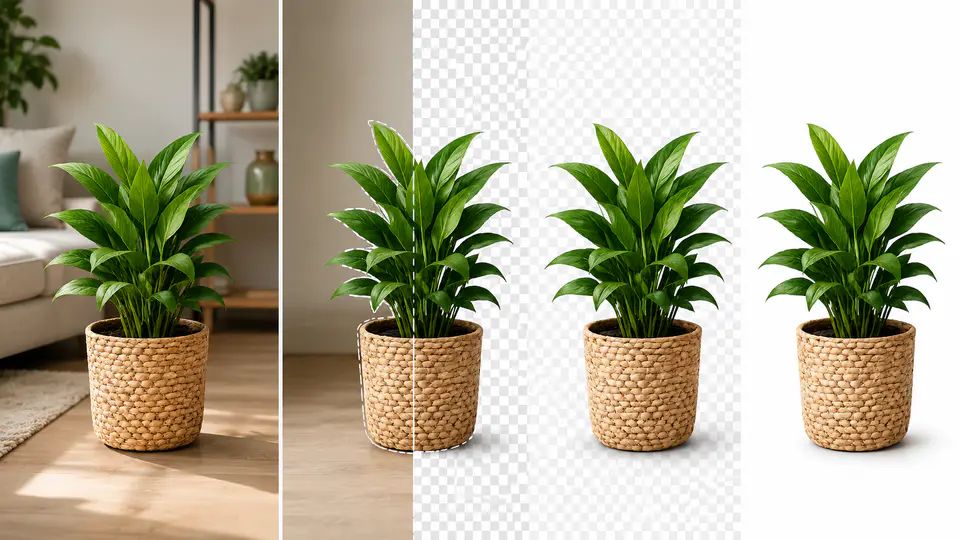
Removing a photo background is useful when you need a clean portrait, transparent product image, profile photo, logo cutout, or social media design. Instead of cutting the subject out manually, you can use AI to detect the subject and erase the background online.
The Imgkits background remover is built for this workflow. It helps you remove the original background from portraits, products, graphics, and everyday photos without installing Photoshop or drawing a mask by hand.
What Makes an Online Background Remover Useful?
A good background remover should be fast, simple, and reliable around subject edges. Hair, clothing, hands, product outlines, and transparent objects are the areas to check before downloading the result.
If you want to replace the background instead of only removing it, use the background changer after creating the cutout.
Portrait Photo Background Removal
For portraits, background removal can make a profile picture, ID-style image, headshot, or social post look cleaner. A neutral or transparent background keeps attention on the person instead of the room, street, or clutter behind them.
Product Photo Background Removal
For ecommerce, a consistent product background makes catalog images easier to compare. Remove the original background, then use a white, transparent, or branded background depending on the marketplace or campaign.
How to Remove a Photo Background Online
Step 1: Open Background Remover
Open Imgkits background remover and prepare the image you want to edit. Use the original file if possible, because high-resolution images usually produce cleaner edges.
Step 2: Upload Your Image
Upload a portrait, product photo, logo, or object image. Avoid heavily compressed files when edge quality matters.
Step 3: Let AI Remove the Background
Imgkits detects the subject and removes the background automatically. Review the cutout around fine edges before downloading or changing the background.
Step 4: Download or Change the Background
Download the transparent image if you need a PNG-style cutout. If you want a new scene or color, continue to the background changer and place the subject onto a replacement background.
Best Images for Background Removal
- Portraits with clear separation between person and background.
- Product photos with strong lighting and visible edges.
- Logos or graphics that need a transparent canvas.
- Objects photographed against simple or contrasting backgrounds.
Tips for Cleaner Cutouts
Choose photos where the subject is not too similar in color to the background. Check the result at full size before using it in a store, ad, or profile. If the first result has rough edges, try a higher-quality original image or a simpler source photo.
FAQ
Can I remove a background without Photoshop?
Yes. Imgkits removes the background online, so you do not need to install or learn Photoshop for common cutout tasks.
Can I make the background transparent?
Yes. Use background remover to create a transparent cutout that can be placed onto websites, product listings, or designs.
Can I add a new background after removing the old one?
Yes. Use background changer when you want to replace the original background with a new color or image.
What should I check before downloading?
Zoom in around hair, hands, product edges, shadows, and transparent materials. These areas reveal whether the cutout is ready to use.