How to quickly get eCommerce product photos with white transparent background?
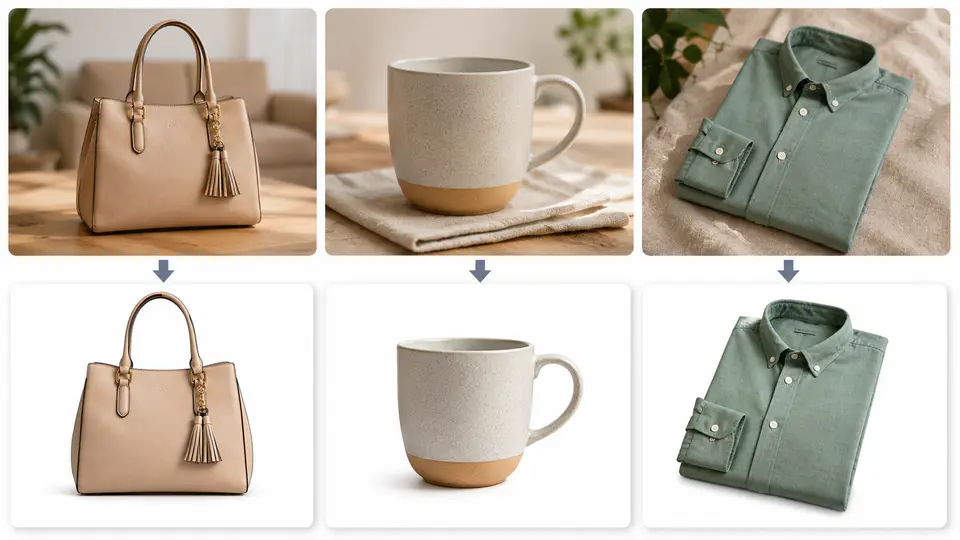
Clean product photos are one of the easiest ways to make an ecommerce page look trustworthy. A white background keeps attention on the product, while a transparent background gives designers more flexibility for banners, ads, marketplaces, and social posts. The problem is that shooting every item in a studio is slow, and manual clipping can take too long when you have dozens or hundreds of SKUs.
Imgkits can help you create consistent product photos directly in the browser. Use the AI background remover when you need a clean cutout or a white product image, then use the background changer when you want to place the same product on a new color or scene.
Why White and Transparent Backgrounds Work for Product Photos
On a product page, the background should support the item instead of competing with it. A plain white background is useful for marketplace listings, category pages, catalogs, and comparison grids because every image follows the same visual rule. Transparent backgrounds are better when the same product needs to be reused in multiple layouts.
They Keep the Product Easy to Compare
When all products use similar framing and background treatment, shoppers can compare shape, color, and details faster. This is especially important for apparel, bags, accessories, small electronics, and beauty products where small visual differences affect buying decisions.
They Make Store Pages Look More Consistent
Mixed lighting, cluttered rooms, and uneven backgrounds make a catalog look less organized. Removing the original background gives every item a cleaner baseline, even when the photos came from different shoots or suppliers.
They Save Editing Time
Traditional background cleanup often requires careful selection, masking, and edge correction. An AI background remover can handle most simple product images in seconds, which makes it practical to clean large batches before uploading them to your store.
How to Create a White Background Product Photo
- Open the Imgkits background remover.
- Upload a product photo with the full item visible and as little motion blur as possible.
- Let the tool detect the product and remove the original background.
- Choose a white background if the image is for marketplace listings or a clean ecommerce catalog.
- Check the product edges, especially hair, fabric, handles, shadows, glass, or reflective parts.
- Download the finished image and use the same crop style across the rest of your store.
For best results, keep the original photo sharp and avoid heavy shadows crossing the product. If the item is white or semi-transparent, place it on a contrasting background before uploading so the AI can separate the product edge more accurately.
When to Use a Transparent Background Instead
A transparent PNG is useful when the product needs to appear on different backgrounds later. Designers can place the same cutout on a sale banner, product comparison image, email graphic, marketplace listing, or seasonal campaign without cutting the item out again.
- Use white backgrounds for standard product listing images, store grids, and clean catalogs.
- Use transparent backgrounds for design assets, ads, thumbnails, and reusable product cutouts.
- Use changed backgrounds when you want a lifestyle-style image, brand color, or campaign scene.
How to Make Product Images Look More Professional
Keep the Crop Consistent
Decide how much space should appear around each product before you edit the whole catalog. A consistent margin makes category pages look deliberate instead of stitched together from unrelated images.
Do Not Over-Remove Natural Edges
Some product materials need soft edges, subtle shadows, or transparent details. Zoom in before downloading and make sure fabric, glass, lace, hair, and handles still look natural.
Add a New Background When the Product Needs Context
Some ecommerce photos work better with a simple scene or color block. After removing the original background, you can move the product into the background changer and test a brand color, gradient-free studio backdrop, or practical lifestyle setting.
Common Product Photo Background Mistakes
- Leaving messy edges: rough cutouts make a product look pasted onto the page.
- Mixing background colors: one product on gray, another on white, and another on beige can make a catalog look inconsistent.
- Ignoring image size: very small source images may look pixelated after cropping or marketplace compression.
- Using busy scenes for listing images: lifestyle images can help campaigns, but main product photos usually need clarity first.
FAQ
Is a white background better than a transparent background?
They solve different problems. White is best for clean ecommerce listings. Transparent is best when you need a reusable product cutout for design work, ads, or multiple background styles.
Can I use Imgkits for marketplace product photos?
Yes. You can remove the original background and export a clean product image, then check the final size and marketplace rules before uploading it.
What if I want a more creative product background?
Start by removing the original background, then use the background changer or the AI background generator to create a cleaner branded scene for campaigns, social posts, and landing pages.
Final Thoughts
A clean background will not fix a poor product, but it can make a good product easier to understand. Start with a sharp source image, remove the distracting background, keep your catalog style consistent, and use white, transparent, or changed backgrounds depending on where the image will appear.