How to remove photo background in 2 seconds online?
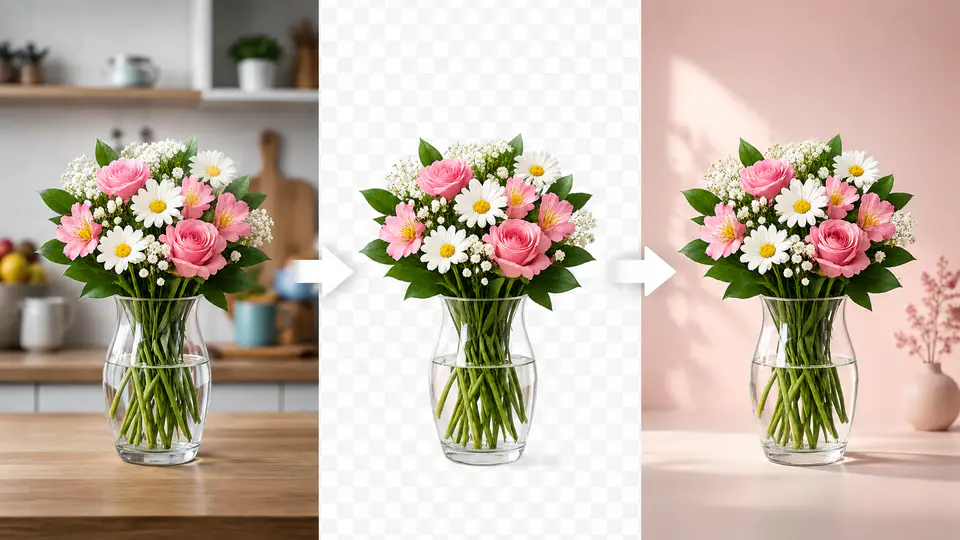
You do not need Photoshop to remove a photo background. For most portraits, product photos, profile images, and simple design assets, the fastest workflow is to upload the image, let AI detect the subject, and download a clean result with a transparent or white background.
The Imgkits background remover is built for that simple workflow. It helps you separate the main subject from a messy or distracting background, then reuse the image for ecommerce listings, resumes, profile pictures, thumbnails, presentations, and social media graphics.
When Should You Remove a Photo Background?
A background can make or break the usefulness of a photo. A good subject may still look unprofessional if it was photographed in a cluttered room, against uneven lighting, or with distracting objects behind it.
- For ecommerce: remove the background to create cleaner product listings.
- For profile photos: replace a busy background with a simple color.
- For design work: export a transparent PNG and reuse it in banners, cards, and thumbnails.
- For presentations: isolate the subject so it fits better on slides and documents.
How to Remove a Photo Background Online
- Open the Imgkits background remover.
- Upload the photo you want to edit.
- Wait for the tool to detect the subject and remove the background.
- Choose a transparent result, white background, or another clean background color.
- Review the edges before downloading the finished image.
This is usually enough for clean portraits, product photos, object cutouts, and everyday image editing. If the source image is sharp and the subject is fully visible, the result is often ready to use immediately.
Transparent, White, or New Background: Which Should You Choose?
| Output | Best Use | Why It Helps |
|---|---|---|
| Transparent PNG | Design assets, thumbnails, website graphics | The subject can be placed on any layout later. |
| White background | Product listings, profile photos, clean documents | It creates a simple and consistent look. |
| New background | Campaign images, social posts, banners | The image can match a brand color or scene. |
If you want more than a plain output, remove the original background first and then use the background changer to place the subject on a new color, studio-style backdrop, or practical scene.
Tips for Better Background Removal Results
Use a Sharp Source Photo
AI can work quickly, but a blurry subject edge still makes the result harder to clean. Use the sharpest version of the image you have.
Keep the Whole Subject in Frame
If part of the head, product, handle, shoe, or object is cropped out before upload, the tool cannot restore the missing area. Start with a complete photo when possible.
Check Detailed Edges
Hair, fur, glass, lace, shadows, and reflective surfaces need a quick review before you use the final image publicly.
Keep a Consistent Style
For ecommerce or team profile pages, use the same background color, crop style, and image size across the full set. Consistency matters as much as the background removal itself.
FAQ
Can I remove a photo background without Photoshop?
Yes. An online AI background remover can separate the subject automatically, so you do not need to create selections, masks, or layers by hand.
What image format should I download?
Use PNG when you need transparency. Use JPG or another standard format when the image will always have a solid background.
Can I replace the background after removing it?
Yes. After creating a clean cutout, you can use Imgkits background changer to add a new color or background style.
Final Thoughts
Removing a photo background should be a short editing step, not a long design project. Start with a clear image, remove the distracting background, choose the output that fits your use case, and keep the final style consistent across your website, store, or campaign.