Remove Strangers from a Photograph in a Minute
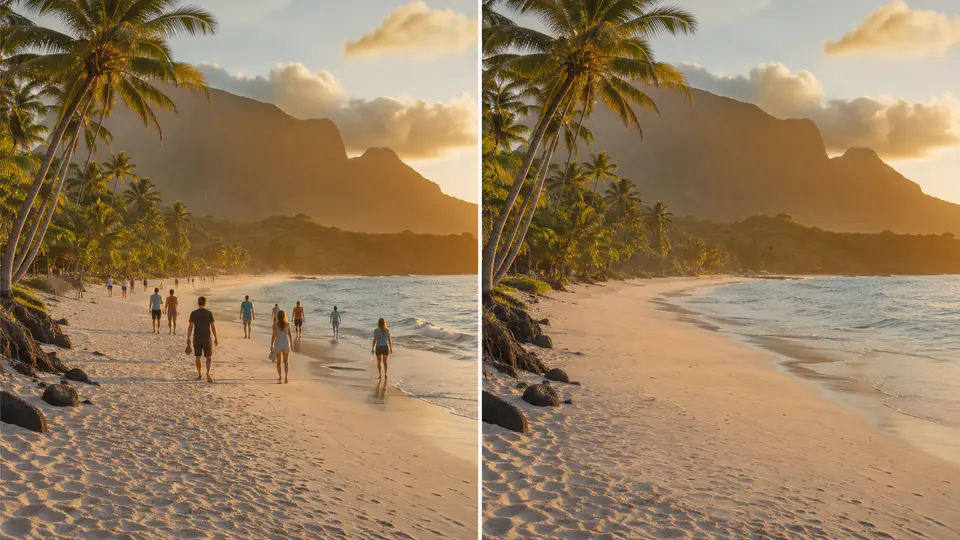
It is hard to take a clean travel photo when a popular landmark, street, beach, or museum is full of people. A stranger may step into the frame at the last second, or several tourists may make the scene feel busier than you wanted.
You do not need desktop editing software to fix every one of those images. Imgkits can remove strangers from a photograph online by filling the selected area with surrounding background details.
Use AI Removal for Travel Photos
For people in the background, use the remove people from photo workflow. It is designed for tourists, passersby, crowds, and other people-shaped distractions. If the photo also has wires, signs, trash cans, bags, or marks, use remove object from photo for a second cleanup pass.
Only edit images you own or have permission to modify. People removal is useful for personal memories, social posts, real estate photos, and creative cleanup, but it should not be used to mislead viewers about news, public events, official records, or sensitive situations.
How to Remove Strangers from a Photo
Step 1: Upload the Original Image
Start with the highest-quality version of your photo. A larger original gives the AI more texture and detail to rebuild the background after the stranger is removed.
Step 2: Mark the People You Want to Remove
Brush over the full person, including clothing edges, shadows, reflections, and any object connected to them. You do not need pixel-perfect selection, but you should cover the entire distraction and a small margin around it.
If there are several people in the image, remove them in smaller groups. This makes it easier to review each result and avoid over-editing a complex background.
Step 3: Process the Image
Run the AI removal and wait for the edited preview. Simple backgrounds such as sky, stone, grass, pavement, water, and walls are usually easier to reconstruct than signs, windows, faces, or detailed patterns.
Step 4: Clean Up Small Leftovers
If a shadow, edge, or small object remains, use a smaller brush selection and run another pass. For difficult travel photos, this second pass often produces a cleaner result than trying to remove a large area at once.
What Works Best
- People standing in front of simple backgrounds.
- Small tourists in the distance.
- Passersby on streets, beaches, plazas, and scenic viewpoints.
- Photos where the main subject does not overlap heavily with the person being removed.
What Needs Extra Care
Some photos require more careful editing. A person standing in front of text, faces, architecture, fences, or patterned objects may leave visible artifacts. In those cases, remove the stranger first, then use smaller object-removal passes to repair the surrounding details.
FAQ
Can I remove more than one stranger from the same photo?
Yes. For crowded scenes, remove people in smaller groups and check the result after each pass.
Do I need to install Photoshop?
No. Imgkits works online, so you can clean up many travel photos without installing desktop editing software.
Why does the result look better on some backgrounds?
The AI rebuilds the selected area from nearby visual details. Simple, repeating backgrounds are easier to reconstruct than detailed signs, faces, or complex architecture.
Can I remove objects as well as people?
Yes. After removing people, use object removal for bags, poles, wires, signs, trash cans, or small leftover marks.