Erase Power Lines from a Photo without any graphics skills
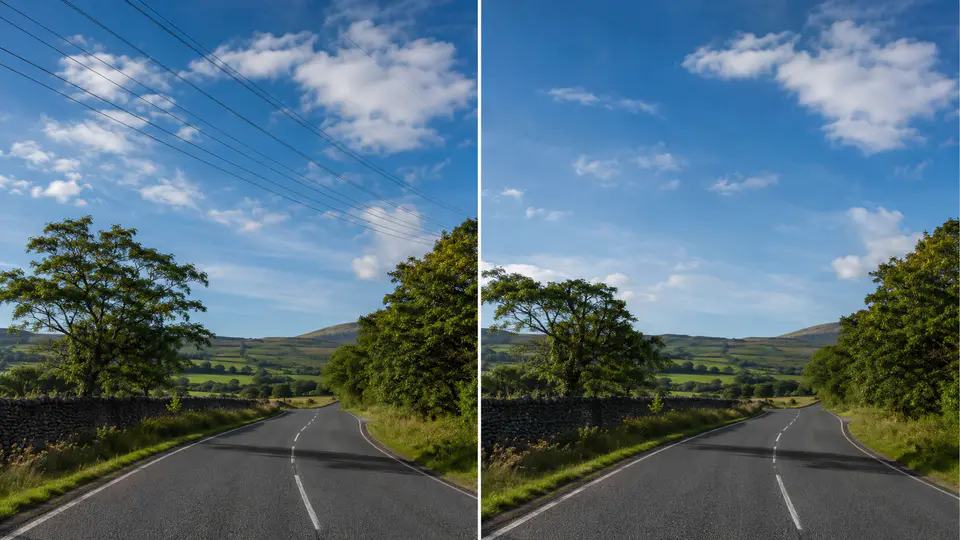
Power lines, telephone wires, and thin cables can cut across an otherwise clean landscape, architecture shot, or travel photo. They are especially distracting when they pass through open sky, mountains, buildings, or a simple background that should feel calm.
The good news is that you do not need advanced Photoshop skills to clean them up. With Imgkits, you can mark the wire area and let AI rebuild the surrounding background so the photo looks more natural.
When Should You Remove Power Lines from a Photo?
This workflow is useful when the photo is yours, you have permission to edit it, or you are preparing an image for a legitimate personal or commercial project. Common examples include travel photos, real estate images, landscape shots, city views, product backgrounds, and old family photos with distracting wires in the sky.
If the wire is part of an important safety sign, legal record, news image, or documentation photo, keep the original untouched. Editing should improve presentation, not mislead viewers about important facts.
How to Remove Power Lines Online with Imgkits
For thin wires and cables, start with the Imgkits wire line remover. It is designed for the kind of long, narrow distractions that are hard to clone manually.
Step 1: Upload the Photo
Choose the clearest version of the photo you have. A higher-resolution image gives the AI more surrounding detail to use when rebuilding the sky, wall, trees, or building texture behind the wire.
Step 2: Mark the Power Lines or Cables
Use the brush to cover the wire, cable, or thin object you want to remove. For best results, cover the full line and a small margin around it. If the wire crosses detailed areas such as tree branches, roofs, windows, or signs, work in smaller passes instead of selecting a huge area at once.
Step 3: Run the AI Cleanup
After selecting the power line, run the cleanup process and review the result. In simple sky or wall areas, one pass is often enough. In complex backgrounds, remove one section at a time and check the image at 100% zoom before continuing.
Step 4: Fix Any Remaining Small Marks
If a small shadow, pole fragment, or leftover mark remains, use the broader remove object from photo workflow for a second pass. This is helpful when a wire is connected to a pole, streetlight, branch, or other object that also needs cleanup.
Tips for Cleaner Results
- Use a brush size slightly wider than the wire.
- Remove long wires in sections when the background changes.
- Zoom in before downloading the final image.
- Avoid selecting too much sky or building texture at once.
- Keep the original file so you can compare before and after.
Power Line Removal vs General Object Removal
Power lines are thin, long, and often cross large areas. That is why a dedicated wire removal workflow is usually the best starting point. General object removal is better for larger distractions such as poles, road signs, people, vehicles, stickers, or background clutter.
If your image has both wires and larger objects, remove the wires first, then clean up the larger object. This order usually produces a more natural background because each edit has a smaller, clearer target.
FAQ
Can Imgkits remove wires from a busy background?
Yes, but complex backgrounds may need smaller selections and more than one pass. Tree branches, building edges, and window frames require more careful review than open sky.
Will the edited area look blurry?
It depends on the photo and selection. A tight selection, high-resolution upload, and small second pass on difficult details usually create a cleaner result.
Can I remove telephone wires, cables, or scratches too?
Yes. The same workflow can help with many long thin distractions, including telephone wires, hanging cables, scratches, and narrow marks, as long as you are allowed to edit the image.
Do I need Photoshop?
No. Photoshop clone and healing tools can work, but Imgkits is faster for users who want to remove power lines online without manual retouching experience.