How to Repair Unwanted Marks in Your Own Photos
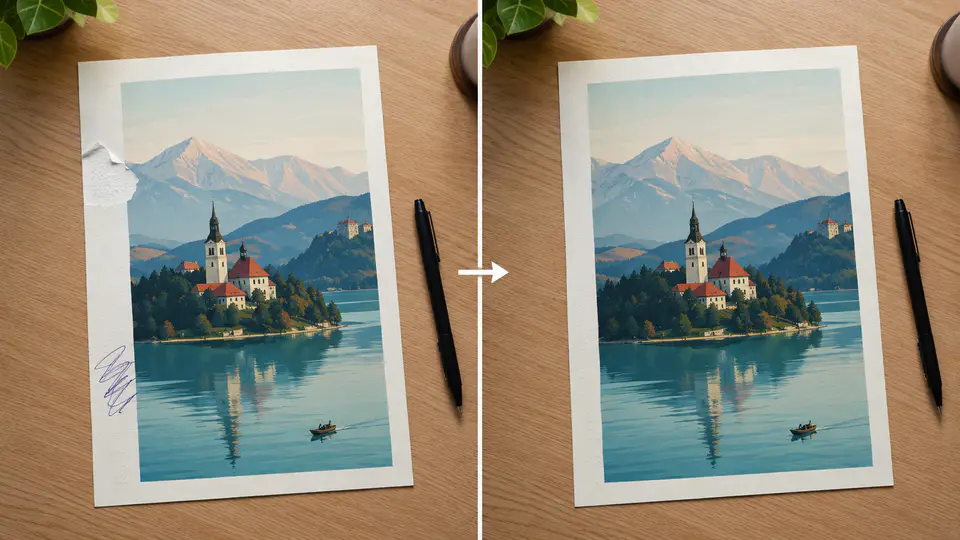
Inpainting is useful when a small area of a photo needs to be repaired: a scratch, stain, distracting mark, missing texture, or accidental label on an image you own or have permission to edit. It works by filling a selected area with visual detail based on the surrounding image.
Use this workflow responsibly. Do not remove creator credits, copyright watermarks, stock-photo previews, or ownership marks from images you do not own. For permitted cleanup, Imgkits offers an inpaint tool for selected repairs and a text remover for text-focused cleanup.
What Inpainting Is Good For
- Cleaning small marks from photos you own.
- Repairing missing or deteriorated image areas.
- Removing accidental labels or annotations from internal images.
- Filling selected background patches with surrounding texture.
- Improving old scans with minor defects.
How to Repair Unwanted Marks in Your Own Photos
- Open the Imgkits inpaint tool.
- Upload an image you own or have permission to edit.
- Select the unwanted mark, defect, or damaged area.
- Run the repair and preview the surrounding texture.
- Repeat with smaller selections if the result needs refinement.
- Download the repaired copy and keep the original file unchanged.
Why Smaller Selections Usually Work Better
Large selections force the tool to invent too much at once. Smaller selections are easier to blend because the tool can use nearby texture, color, and lighting as a guide. This is especially important for water, fabric, grass, walls, and patterned backgrounds.
Inpaint vs Text Remover
| Need | Use | Best For |
|---|---|---|
| Repair a selected image area | Inpaint | Marks, scratches, missing patches, background defects |
| Clean text or date stamps | Text remover | Owned photos, scanned labels, temporary annotations |
| Fix repeated texture | Inpaint with small passes | Water, walls, fabric, grass, simple backgrounds |
Responsible Cleanup Checklist
- Confirm you own the image or have permission to edit it.
- Do not remove marks that identify another creator or rights holder.
- Keep the original image file.
- Use smaller selections for complex areas.
- Review straight lines, water, faces, text, and repeating patterns before publishing.
FAQ
Can inpainting repair every unwanted mark?
No. It works best when the surrounding area gives enough visual information. Complex faces, text, and detailed patterns may need extra review.
Is this the same as removing a watermark?
No. This guide is for repairing images you own or have permission to edit. Do not remove copyright or ownership watermarks from other people’s work.
What should I do if the repair looks obvious?
Undo the edit, select a smaller area, and repair in multiple passes. Large or complex areas often need more careful selections.
Final Thoughts
Inpainting is most useful when it helps restore or clean up images you are allowed to edit. Keep selections precise, review the repaired texture, and respect ownership marks on images that are not yours.